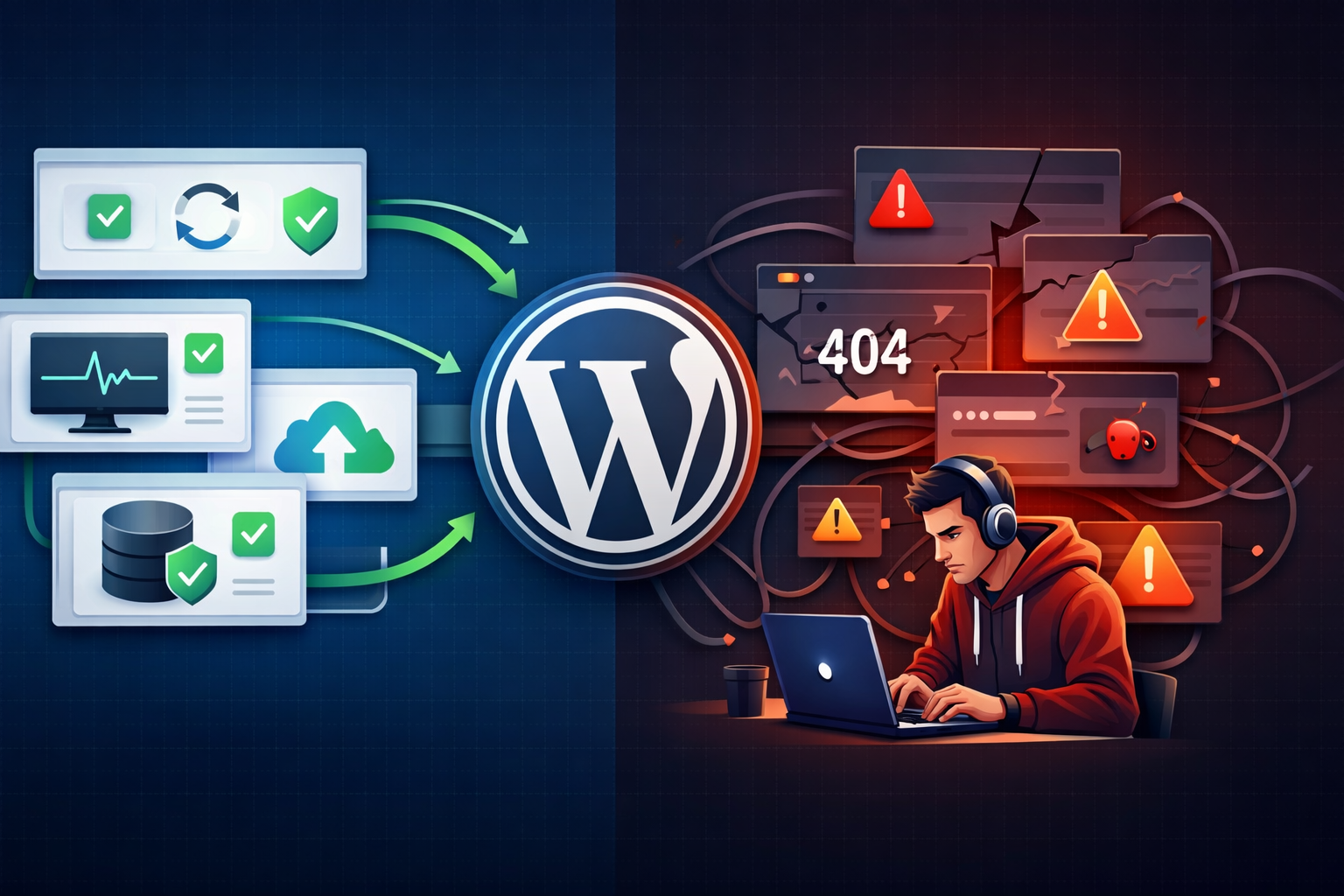
Keeping WordPress updated is essential for security, performance, and long term stability. However, many site owners hesitate to update because they fear something will break.
The good news is that WordPress updates can be done safely when you follow a structured process. This guide explains how to update WordPress without risking your live website.
Why WordPress Updates Are Important
WordPress updates are not just about new features. They also fix vulnerabilities and improve compatibility across themes and plugins.
- Security improvements
- Performance enhancements
- Bug fixes
- Compatibility updates
Ignoring updates increases the risk of security breaches and unexpected functionality issues.
Common Reasons Updates Break Websites
Updates usually cause issues because of poor preparation, not the update itself.
- Outdated or abandoned plugins
- Themes overriding core functionality
- Multiple plugins performing the same task
- Updating directly on the live site without testing
- Server environment incompatibility
Safe Process to Update WordPress
1. Create a Full Backup
Before making any changes, create a complete backup of your website.
- Website files
- Database
- Media uploads
- Theme and plugin files
This ensures you can restore your website quickly if something goes wrong.
2. Use a Staging Environment
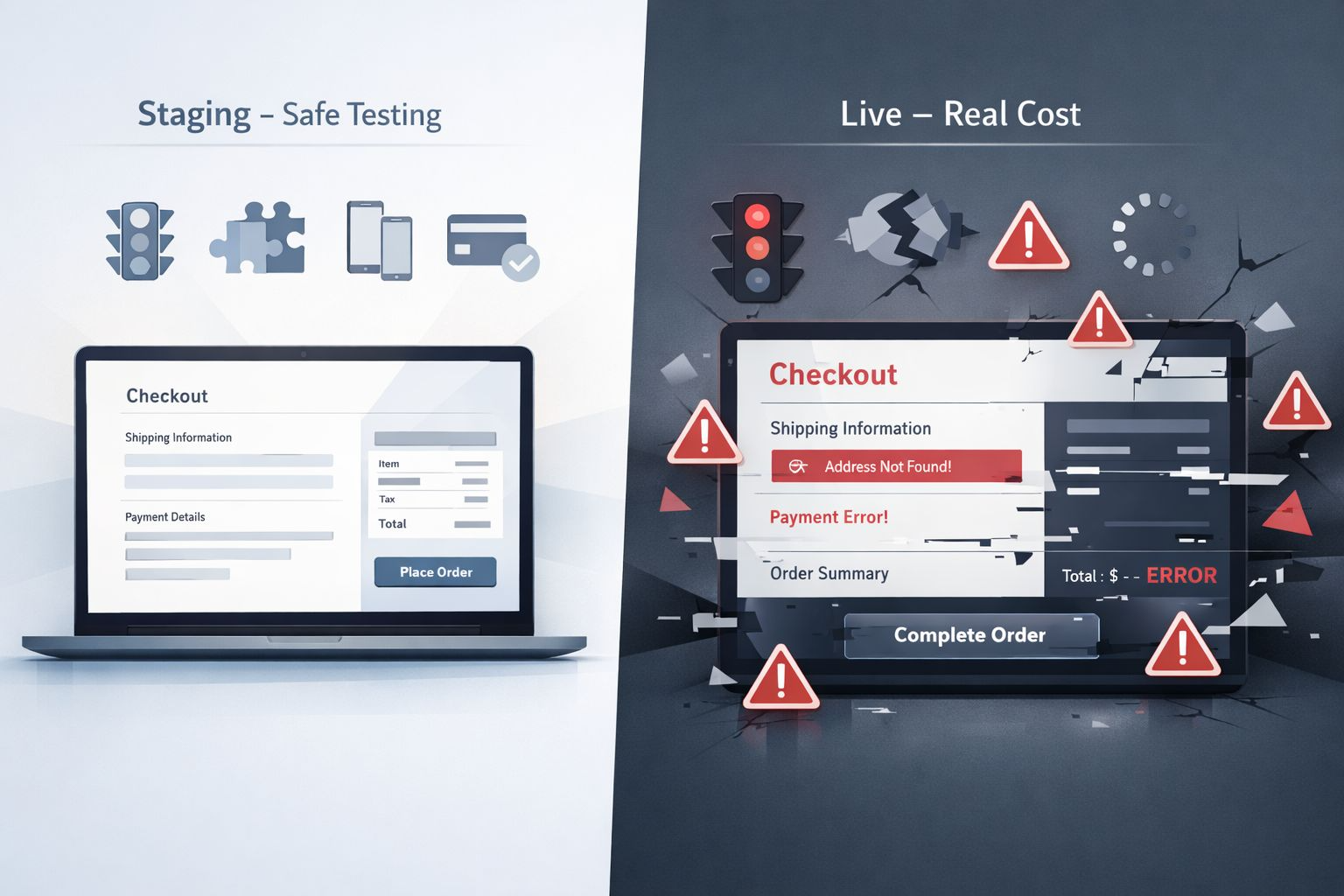
A staging site is a copy of your live website where you can safely test updates.
- Test plugin compatibility
- Check layout and design
- Identify conflicts early
This step prevents most update related problems.
3. Update Plugins First
Update all plugins before updating WordPress core. Developers usually release compatibility fixes in advance.
After updating each plugin, quickly check your website to confirm everything works properly.
4. Update Your Theme
Next, update your active theme. If you are using a custom theme, ensure it does not overwrite important changes.
Using a child theme protects customizations during updates.
5. Update WordPress Core
Once plugins and themes are updated and tested, update WordPress core.
After updating, test key areas of your website:
- Homepage loading
- Contact forms
- Login functionality
- Checkout process if applicable
6. Clear Cache and Monitor Performance
Clear website cache and CDN cache after updating. Then review loading speed and functionality.
This ensures users see the latest version without conflicts from cached files.
Best Practices for Long Term Stability
- Schedule regular maintenance checks
- Avoid unnecessary plugins
- Use trusted and actively maintained plugins
- Monitor website uptime
- Choose reliable WordPress optimized hosting
Need a Website That Actually Converts?
Let’s Build Something That Works for Your Business
Your website shouldn’t just look good it should generate leads and sales. I design and develop high-performing, fast, and conversion-focused websites tailored to your goals.
Final Thoughts
Updating WordPress does not have to be risky. Problems usually happen when updates are rushed or tested on live environments.
With backups, staging, and a structured process, you can safely update WordPress while keeping your website secure and stable.