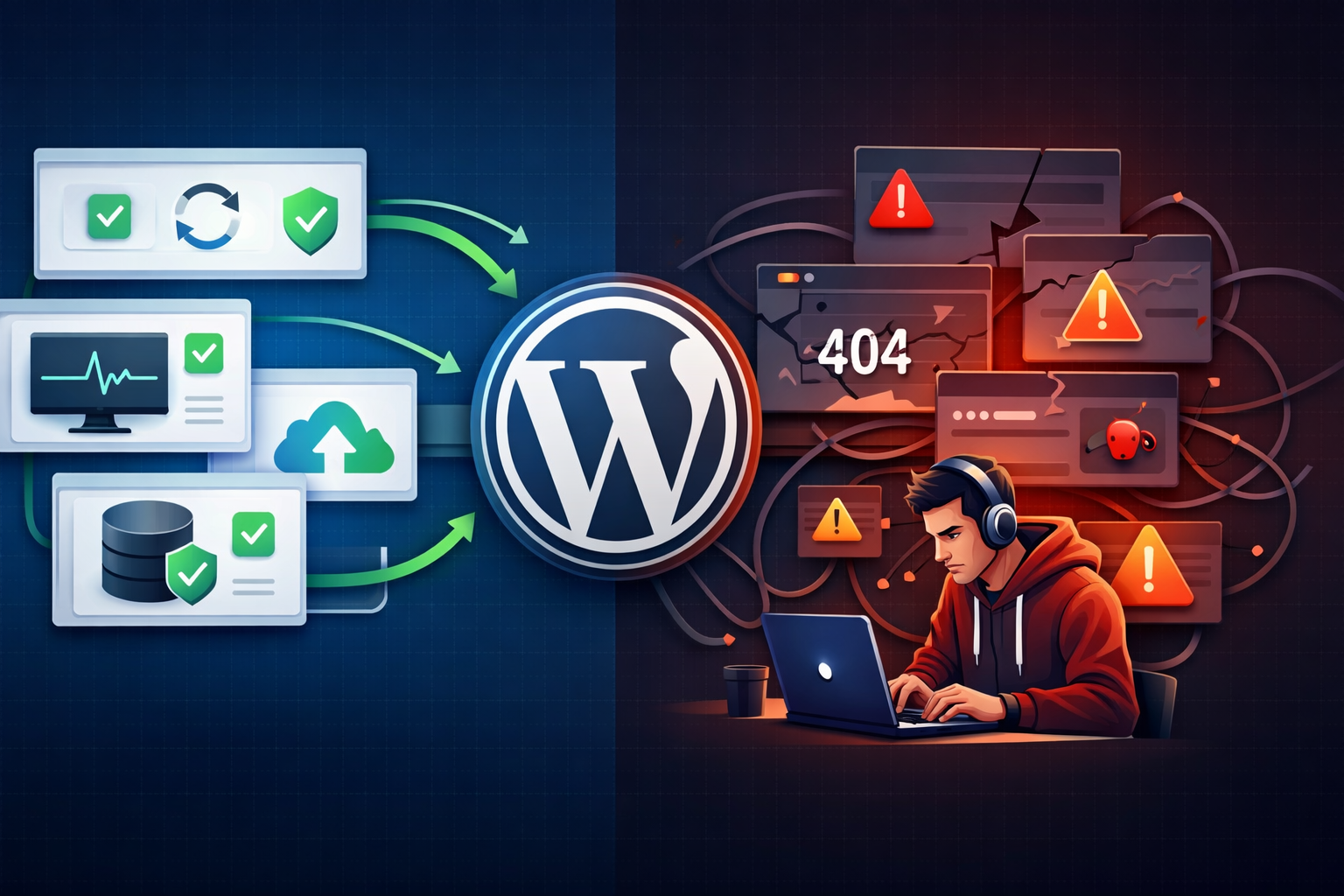
Keeping your WordPress website up-to-date is crucial for security, performance, and new features. But updating directly on a live website? That’s a move that can sometimes do more harm than good. Here’s why you should think twice before clicking “Update” on your live site—and what you can do instead.
1. Updates Can Break Your Website
WordPress updates, plugins, or themes may include changes that conflict with your current setup. While updates aim to improve functionality or fix bugs, they can sometimes:
- Cause layout issues
- Break critical functionality
- Trigger plugin conflicts
On a live site, even a small issue can instantly affect your users’ experience, costing trust and credibility.
2. You Risk Losing Your Work
If something goes wrong during an update and you haven’t taken a backup, you could lose:
- Content changes
- Custom code snippets
- Media files
Without a reliable backup, restoring your website can become a stressful, time-consuming task.
3. Downtime Affects Your Visitors and SEO
A failed update can make your website inaccessible. Downtime means:
- Lost visitors and potential sales
- Frustrated returning users
- Negative impact on search engine rankings
Even a few minutes of downtime on a high-traffic site can have serious consequences.
4. Hidden Vulnerabilities Can Appear
Sometimes updates themselves may introduce new vulnerabilities or incompatibilities with other software. Updating on a live site removes the chance to test these risks in a safe environment first.
How to Update WordPress Safely
Here’s what I recommend to avoid these common risks:
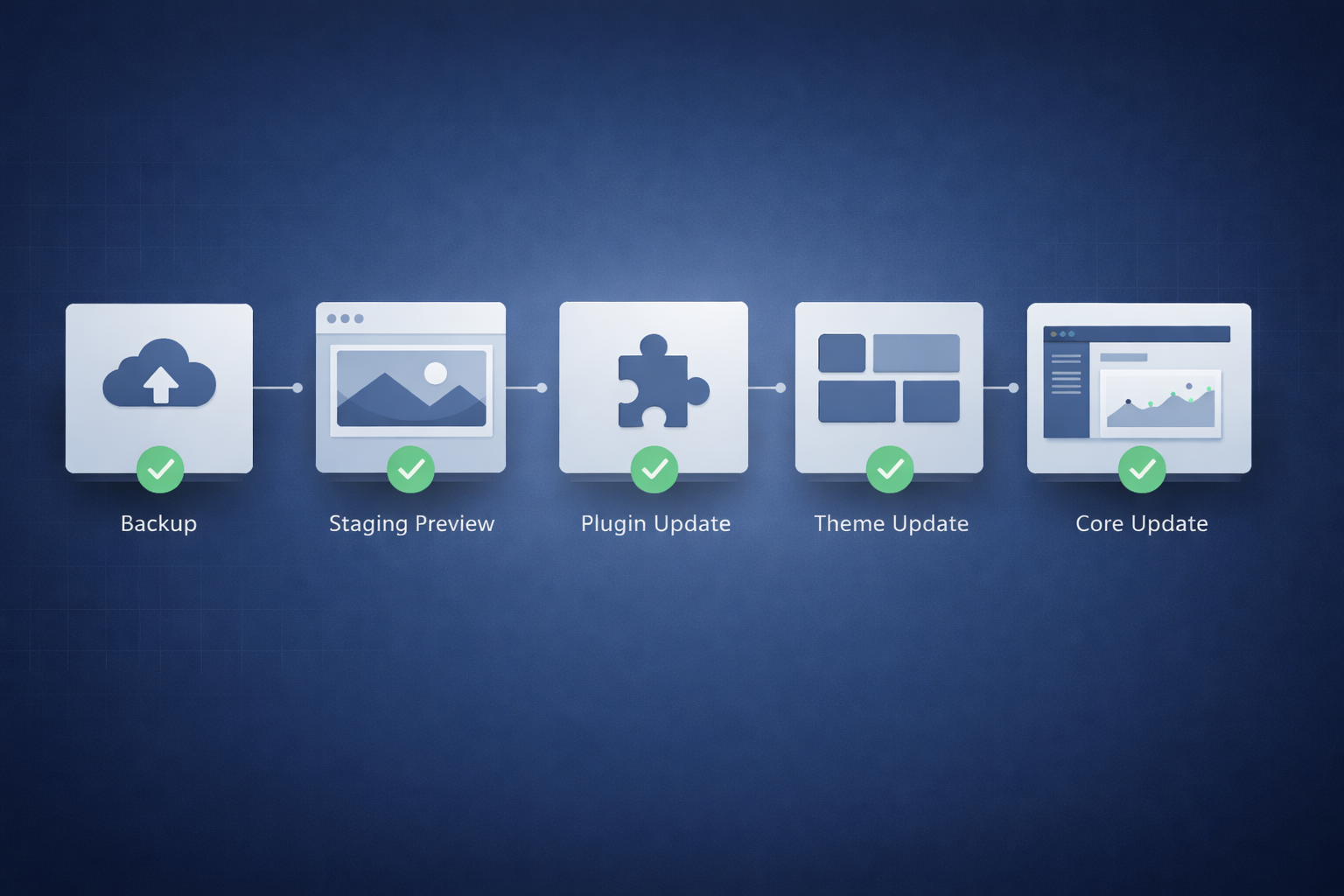
- Create a Complete Backup
Always back up your database, media files, themes, and plugins. Tools like UpdraftPlus or your hosting backup system can make this process simple. - Use a Staging Site
Test updates in a staging environment first. This is a clone of your live website where you can safely apply updates and identify conflicts before going live. - Update in Small Steps
Update WordPress core, then plugins, then themes—not everything at once. This way, if an issue arises, you know exactly what caused it. - Check for Plugin or Theme Compatibility
Review changelogs and test in a staging environment to avoid surprises. - Monitor Your Site After Updating
After pushing updates to the live site, check functionality, performance, and design to ensure everything works as expected.
Need a Website That Actually Converts?
Let’s Build Something That Works for Your Business
Your website shouldn’t just look good it should generate leads and sales. I design and develop high-performing, fast, and conversion-focused websites tailored to your goals.
Final Thought
Updating WordPress is essential for keeping your website secure, fast, and feature-rich—but doing it directly on a live site comes with risks. By taking a careful approach with backups, staging, and step-by-step updates, you not only protect your website but also ensure a smooth experience for your visitors. Treat updates as a planned maintenance task, and you’ll save yourself from unnecessary stress, downtime, and lost opportunities.