
Introduction
Plugins are what make WordPress so flexible.
You can add forms, online stores, SEO tools, security features, and booking systems without writing any code.
So when each plugin works well on its own, it feels reasonable to expect them all to work well together.
Most of the time, they do.
Sometimes they do not, and the result can be confusing.
Imagine your website running smoothly for months.
You update one plugin.
Suddenly your contact form stops sending messages, or a button no longer responds, or your whole website shows a blank white screen.
Nothing looks obviously wrong with the plugin you just updated.
The plugin itself was probably never the problem.
The real issue is how it interacts with everything else on your website.
The good news is that plugin conflicts follow clear patterns, which means they can be found and fixed with the right approach.
What a Plugin Conflict Actually Is
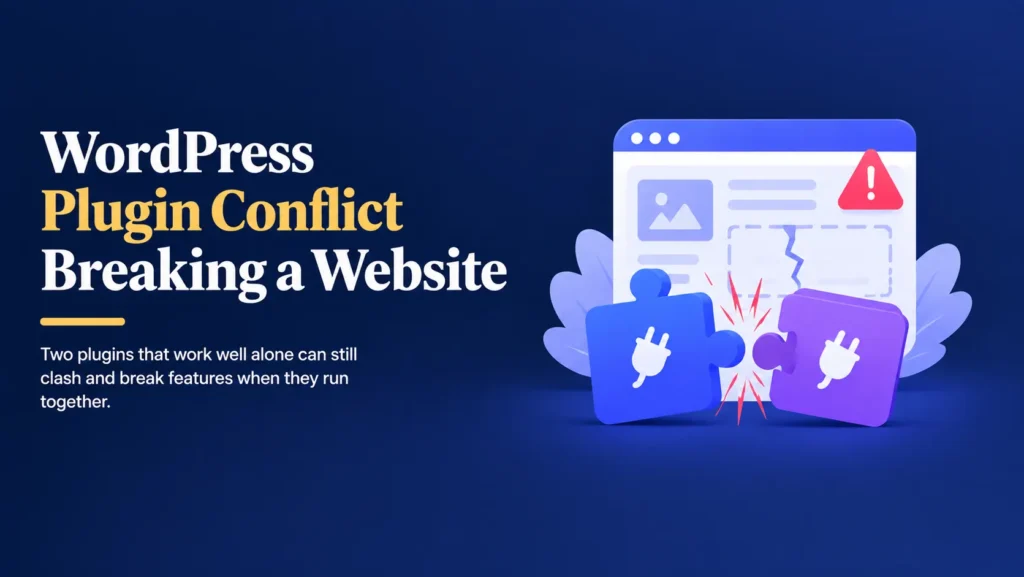
A plugin conflict happens when two pieces of code try to do something that cannot be done at the same time.
Every plugin is written by a different developer.
Most developers test their plugin carefully, but they cannot test it against every other plugin in the world.
Your website has its own unique mix of plugins, theme, hosting, and settings.
That specific combination may never have been tested by anyone.
Think of it like two people trying to edit the same document at the same time.
Each person is doing their job correctly.
Together, their changes overwrite each other and create a mess.
The Most Common Causes of Plugin Conflicts
Conflicts can look mysterious from the outside, but they usually come from a small number of causes.
- Shared code libraries: Two plugins load different versions of the same script, and one version overrides the other.
- Competing features: Two plugins try to control the same part of your website, such as caching, security, or SEO settings.
- Theme clashes: A plugin expects the theme to behave in a certain way, and the theme does something different.
- Version mismatches: A plugin is updated, but another plugin or your PHP version is not ready for the change.
- Resource limits: Several plugins together use more memory than your hosting plan allows.
Understanding which type of conflict you are dealing with makes it much easier to solve.
Signs Your Website May Have a Plugin Conflict
Plugin conflicts do not always announce themselves clearly.
Some are obvious, while others are subtle.
Common signs include:
- A blank white screen instead of your website.
- Contact forms that stop sending enquiries.
- Buttons, menus, or sliders that no longer respond.
- Layouts that suddenly look broken or misaligned.
- Error messages after saving a page or installing an update.
- Checkout pages that fail or stop recording orders.
- A website that suddenly loads much slower than before.
If a problem appears right after an update, a conflict is one of the first things to suspect.
Why Conflicts Often Appear After an Update
Many people are surprised when a website that worked for months suddenly breaks.
The reason is simple.
Plugins, themes, and WordPress itself are all updated on different schedules.
A combination that worked perfectly last week may now include one component that behaves differently.
That is exactly why updating a live website without testing carries risk, as explained in why updating WordPress on a live website is risky.
The conflict was not created by the update.
The update simply revealed that two components were no longer compatible.
Why More Plugins Means More Chances for Conflict
Every plugin you add creates new possible interactions with every other plugin.
Five plugins have a small number of combinations.
Thirty plugins have a very large number.
This is one of the main reasons websites with long plugin lists tend to be less stable, a pattern explored in why too many plugins cause WordPress issues.
Plugins that overlap in function, such as two SEO plugins or two caching plugins, are especially likely to clash because they try to control the same thing.
WooCommerce Stores Face Higher Stakes
If you run an online store, a plugin conflict can cost real money.
WooCommerce depends on many plugins working together, including payment gateways, shipping tools, tax calculators, caching, and security plugins.
A conflict between any of them can affect the most important part of your business.
Possible results include:
- A payment method that disappears from checkout.
- Shipping costs that calculate incorrectly.
- Confirmation emails that never send.
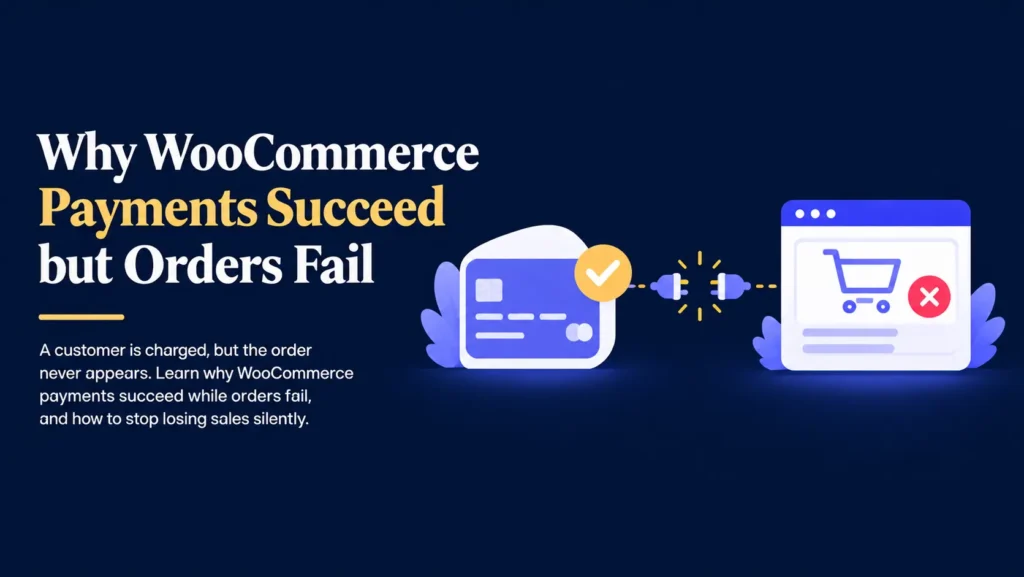
- Payments that succeed while the order is never recorded, a problem explained in why WooCommerce payments succeed but orders fail.
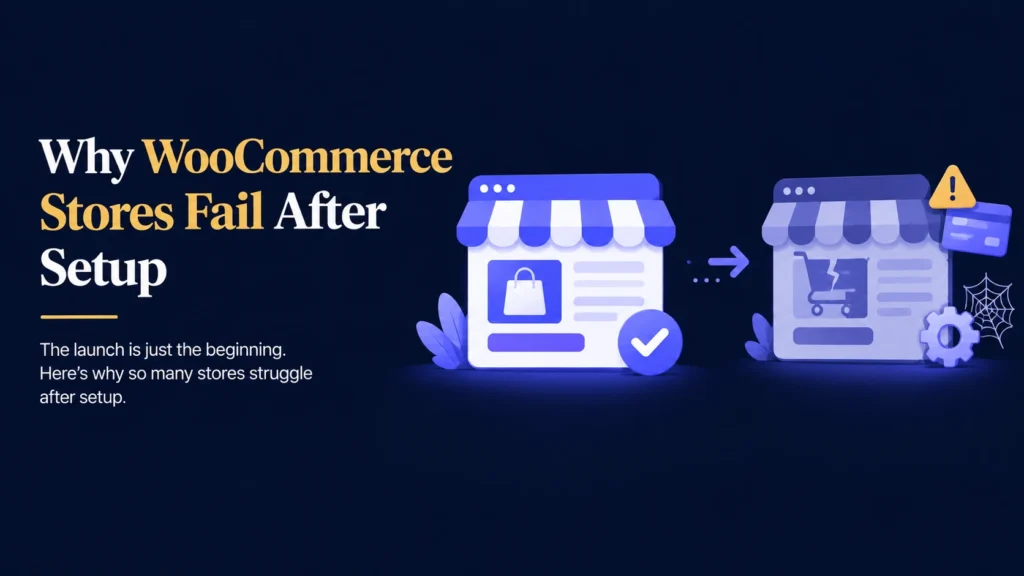
This is one of the quiet ways stores lose sales over time, as covered in why WooCommerce stores fail after setup.
How to Find the Plugin Causing the Conflict
The most reliable way to find a conflict is a process of elimination.
Always do this on a staging website, not your live website, so your visitors are never affected.
- Create a complete backup.
- Copy your website to a staging environment.
- Switch to a default WordPress theme to rule out a theme clash.
- Deactivate every plugin and confirm the problem is gone.
- Reactivate plugins one at a time.
- Test the affected feature after each plugin is reactivated.
- When the problem returns, you have found the conflict.
Once you know which plugin is involved, you can test it against the others to find which pair is clashing.
Your browser’s developer tools and your WordPress error log can also give helpful clues about exactly where the problem occurs.
How to Fix a Plugin Conflict
Once you have found the cause, you have several options.
The right choice depends on how important each plugin is.
- Update both plugins: Sometimes a newer version already fixes the issue.
- Adjust settings: A setting in one plugin may be overlapping with another.
- Contact the plugin developer: Developers can often confirm known issues and offer fixes.
- Replace one plugin: Choose a better maintained alternative that does the same job.
- Remove an unnecessary plugin: If two plugins overlap, you may only need one.
- Use custom code: For simple features, a small piece of properly written code can replace a heavy plugin.
Be careful with quick fixes.
Installing yet another plugin to solve a conflict often adds a new layer of risk, which is the same trap described in why plugins can’t fix broken WordPress systems.
Conflicts Are Not Always Plugin Versus Plugin
Sometimes the clash involves your theme or page builder rather than another plugin.
A theme that was customized directly may not behave the way a plugin expects, a risk discussed in common WordPress theme customization mistakes.
Page builders can also introduce their own scripts and styles that clash with other plugins, one of several reasons covered in are page builders slowing down your website.
That is why testing with a default theme is such a useful first step when tracking down a conflict.
Not Every Conflict Shows Up Immediately
A common misconception is that if your website still loads, there cannot be a conflict.
Unfortunately, that is not always true.
Some conflicts only affect specific features, specific pages, or specific devices.
For example:
- A form works on desktop but not on mobile.
- A checkout step fails only for one payment method.
- A page looks fine for logged out visitors but breaks for logged in users.
- A script error slowly makes your pages heavier and slower.
These hidden problems can continue for weeks, which is why regular testing matters.
Small issues like these also quietly damage visitor confidence, as explained in small UX issues that reduce website trust.
Backups Give You a Safety Net
Troubleshooting a conflict involves deactivating plugins and changing settings, so it should always begin with a complete backup.
A backup is a copy of your website that includes:
- Pages and posts.
- Images and media files.
- The database.
- Plugin settings.
- Theme files.
If something goes wrong while you investigate, you can restore your website to the way it was before.
Backups do not prevent problems.
They give you a quick way to recover from them.
A Simple Process for Preventing Plugin Conflicts
You cannot remove the risk completely, but you can reduce it significantly.
It simply requires a consistent process.
- Create a complete backup before any change.
- Test every update on a staging website first.
- Update plugins in small groups, not all at once.
- Test forms, logins, and checkout after each round of updates.
- Review your plugin list regularly and remove what you no longer need.
- Choose plugins that are actively maintained and well reviewed.
- Monitor your website for errors after any change.
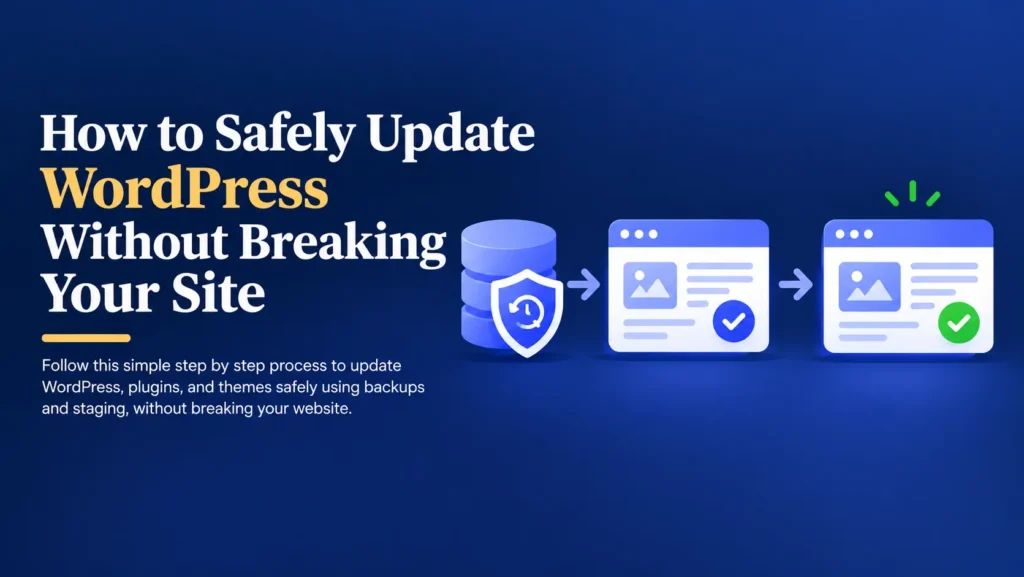
The full routine is laid out in how to safely update WordPress without breaking your site.
Simple Habits That Lower Your Risk
- Use fewer plugins and make sure each one has a clear purpose.
- Avoid installing two plugins that do the same job.
- Check when a plugin was last updated before installing it.
- Make sure your PHP version is supported by your plugins.
- Never update everything at once on a live website.
- Keep a note of which plugins are essential to your business.
These small habits can save hours of troubleshooting later.
Final Thoughts
Plugin conflicts are one of the most common reasons a healthy WordPress website suddenly stops working.
They are frustrating because the cause is rarely obvious.
They are also manageable once you understand how they happen.
The safest approach is simple.
Back up your website.
Test changes on a staging website.
Keep your plugin list lean and well maintained.
Your website supports your marketing, your customer enquiries, and in many cases, your revenue.
Protecting it from conflicts helps keep your business running smoothly.