
Introduction
Updates are one of the most important parts of looking after a WordPress website.
They fix security gaps, improve performance, and keep everything compatible with newer technology.
So when an update notification appears, it feels like something you should handle right away.
Sometimes a quick click works perfectly.
Sometimes it leaves you with a broken layout, a dead contact form, or a checkout that no longer works.
Many business owners end up stuck between two worries.
Skip updates and risk security problems.
Run updates and risk breaking the website.
The good news is that you do not have to choose.
The risks we covered in why updating WordPress on a live website is risky are real, but they are also easy to manage with a clear process.
This guide shows you exactly what that process looks like, step by step.
Step 1: Create a Complete Backup
Every safe update begins with a backup.
A backup is your safety net.
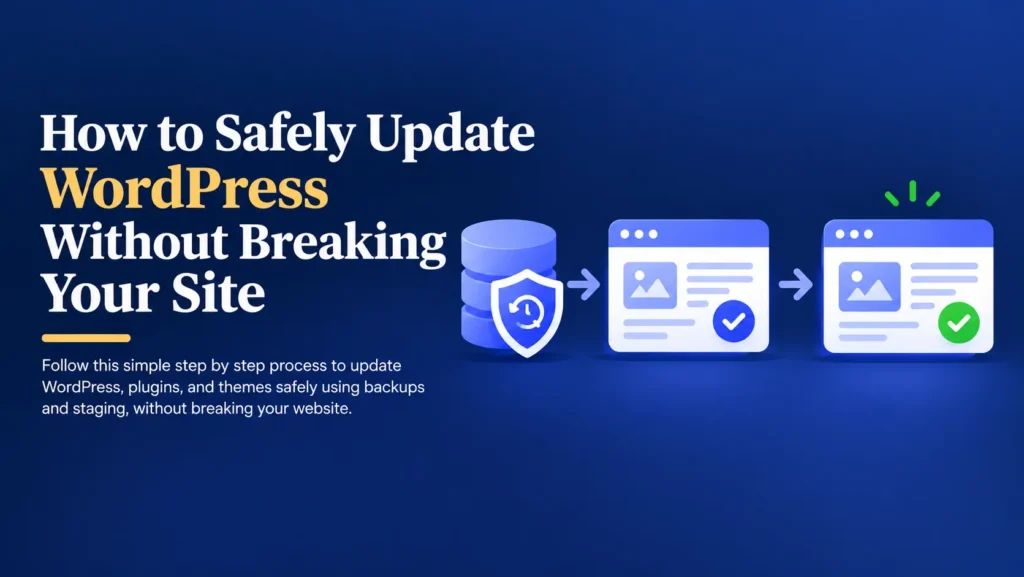
If anything goes wrong, you can return your website to exactly how it was before.
A complete backup should include:
- Your pages and posts.
- Images and media files.
- The database.
- Plugin settings.
- Theme files.
Do not rely on a backup from last month.
Create a fresh one immediately before you update, and confirm that it can actually be restored.
A backup you have never tested is only a hope, not a plan.
Step 2: Review What Needs Updating
Before you click anything, take a moment to look at what is waiting.
Your update screen usually shows a mix of WordPress core updates, plugin updates, and theme updates.
Not every update carries the same level of risk.
Take a quick look at:
- Whether an update is a small security fix or a major version change.
- The plugin developer’s notes on what has changed.
- Whether any plugin has not been updated by its developer for a long time.
- Which updates affect important features like forms or payments.
This short review helps you decide what to test most carefully.
It also helps you spot plugins that may be better removed, as explained in why too many plugins cause WordPress issues.
Step 3: Use a Staging Website
A staging website is a private copy of your live website.
Visitors never see it.
It gives you a safe place to run updates and see what happens before anything reaches your real customers.
On a staging website, you can:
- Run every update without any risk to your live website.
- Spot layout problems and error messages.
- Test forms, logins, and checkout.
- Take your time fixing issues without any pressure.
Many hosting providers include a one click staging feature.
If yours does not, a developer can set one up for you.
Step 4: Update in Small Groups
It is tempting to select every update and click once.
It is also the fastest way to make a problem hard to solve.
If you update ten things at once and something breaks, you will not know which update caused it.
A safer order looks like this:
- Update WordPress core first.
- Update your theme next.
- Update plugins one at a time, or in very small groups.
- Check the website briefly after each step.
This takes slightly longer, but it makes any problem easy to trace and fix.
Step 5: Test What Actually Matters
Many people finish an update, look at their homepage, and assume everything is fine.
The homepage is rarely where problems hide.
The most important issues usually appear in features that need interaction.
Test each of these carefully:
- Contact forms, including whether the email actually arrives.
- Login and password reset pages.
- Booking or membership features.
- Key page layouts on both desktop and mobile.
- Any custom features your business depends on.
If your design was customized directly inside theme files, also check that nothing was lost, a risk covered in common WordPress theme customization mistakes.
If you use a page builder, check that your layouts still load correctly and quickly, as discussed in are page builders slowing down your website.
Step 6: Test Checkout if You Run a Store
If you run WooCommerce, this step is not optional.
Your store depends on products, payments, shipping, taxes, and emails all working together.
After any update, place a test order from start to finish and confirm that:
- Products can be added to the cart.
- Shipping and tax calculate correctly.
- Every payment method works.
- The order appears in your WooCommerce dashboard.
- Confirmation emails are sent to the customer and to you.
That final check matters more than it seems, because a payment can succeed while the order is never recorded, a problem explained in why WooCommerce payments succeed but orders fail.
Ongoing testing like this is also a big part of what keeps a store healthy long term, as covered in why WooCommerce stores fail after setup.
Step 7: Update the Live Website at a Quiet Time
Once everything works on staging, you are ready to update your live website.
Timing matters more than most people realize.
Choose a period when your website has the least activity.
That way, if a visitor is affected, the impact is small.
It also keeps you away from busy periods, when your website is already under more pressure, as explained in what breaks first when website traffic grows.
Avoid updating just before a sale, a marketing campaign, or the end of your working day when nobody is available to respond.
Step 8: Perform a Final Check
After updating the live website, repeat your most important tests.
Check the same forms, logins, and checkout steps you tested on staging.
Browse a few key pages on both desktop and mobile.
Look at your website’s speed to make sure it has not slowed down.
Then keep an eye on things over the next day or two, since some problems only appear once real visitors start using the website.
What to Do if Something Still Goes Wrong
Even with a careful process, an unexpected problem can occasionally appear.
When it does, do not panic and do not start making random changes.
Follow a calm sequence instead:
- Restore your most recent backup to bring the website back quickly.
- Repeat the updates on a staging website, one at a time.
- Identify which update caused the problem.
- Look for a fix, an alternative plugin, or a developer’s help.
- Apply the corrected approach to the live website.
Because you made a backup first, a problem becomes a short interruption rather than a crisis.
Why a Plugin Is Not the Answer to Update Problems
When updates cause repeated trouble, many people look for another plugin to manage or control them.
Sometimes that helps a little.
More often, repeated update problems point to something deeper, such as outdated code, a heavily customized theme, or plugins that no longer work well together.
This is the same pattern described in why plugins can’t fix broken WordPress systems, where the real solution lies in the foundation rather than another tool layered on top.
A Quick Update Checklist You Can Reuse
- Create a fresh, complete backup and confirm it works.
- Review what is waiting to be updated.
- Copy your website to a staging environment.
- Update WordPress core, then your theme, then plugins in small groups.
- Test forms, logins, layouts, and checkout.
- Update the live website during a quiet period.
- Repeat your key tests and monitor the website for a day or two.
Keep this list somewhere easy to find and follow it every time.
A consistent routine is what turns updates from something stressful into something routine.
How Often Should You Update?
Small, regular updates are usually safer than waiting months and updating everything at once.
A simple rhythm that works well for many websites looks like this:
- Check for security updates weekly and install them promptly.
- Review other plugin and theme updates every one to two weeks.
- Do a deeper review of your whole setup every few months.
The longer updates build up, the larger and riskier each one becomes.
Final Thoughts
Updating WordPress should never feel like a gamble.
Ignoring updates exposes your website to security risks.
Rushing them can break the features your business depends on.
The safest approach is simple.
Back up your website.
Test every update on a staging website.
Then update your live website with confidence.
Your website supports your marketing, your customer enquiries, and in many cases, your revenue.
A steady, careful routine keeps it secure, stable, and working for your business.
Want Someone to Handle Your Updates Safely?
Update Your Website With Confidence
If you would rather not worry about updates breaking your website, I’d be happy to handle the whole process safely for you.